How to Connect Bluetooth Headphones to a TV
5 min
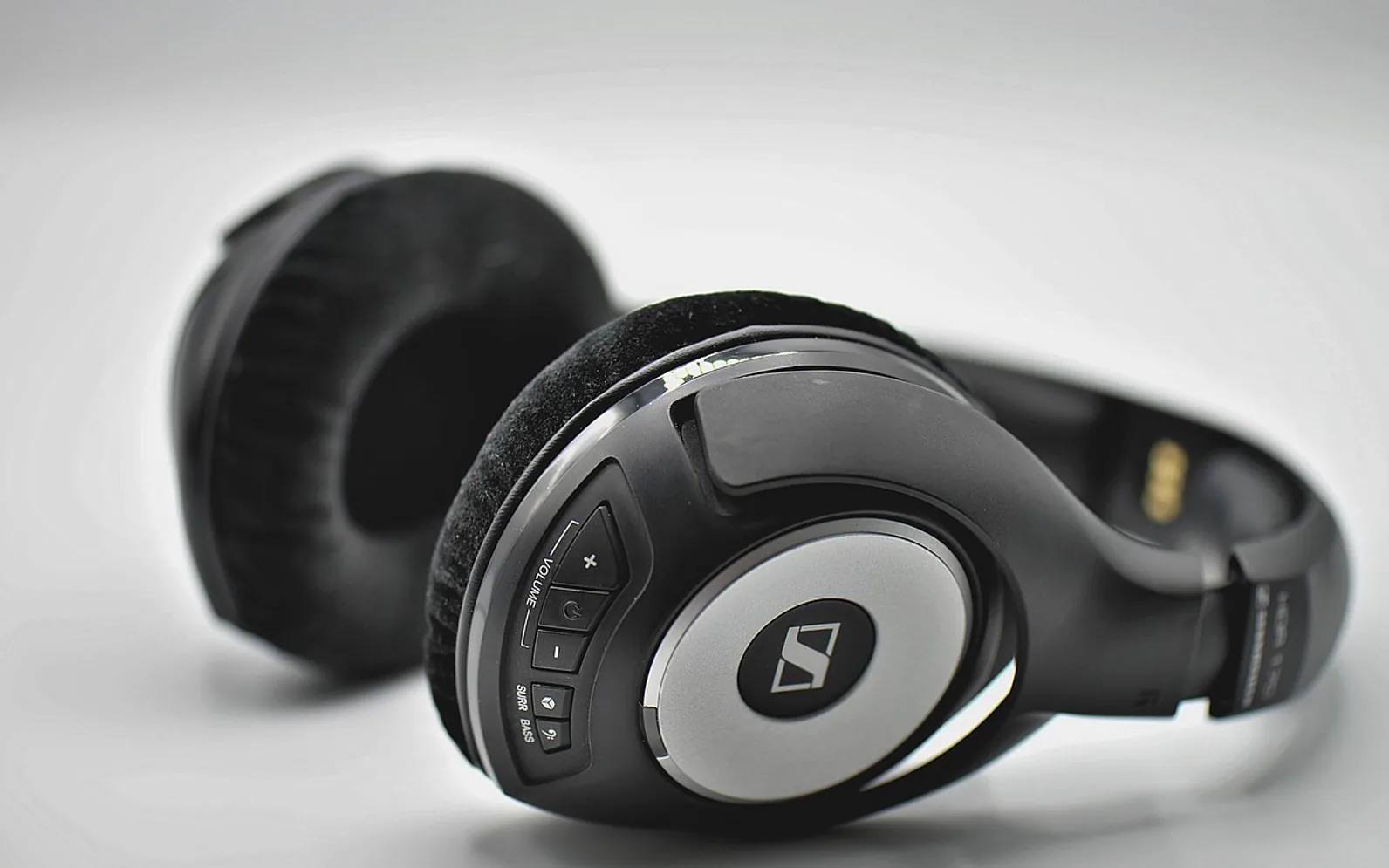
To connect Bluetooth headphones to a TV, put the headphones into pairing mode, then open the TV's settings and look for a Bluetooth, sound output or remote and accessories menu. Choose the option to add or search for a device, wait for the headphones to appear in the list and select them. Once they are paired, set the sound output to the headphones if the TV does not switch over by itself. If the TV has no Bluetooth at all, a small transmitter plugged into its headphone, optical or USB port does the same job.
That is the short version. The menus have different names on every brand, and a few things can still go wrong after pairing, mostly a delay between picture and sound. The rest of this guide walks through each step and the usual fixes.
Check whether your TV has Bluetooth
Most recent smart TVs include Bluetooth, but not all of them let you send sound to headphones with it. On some sets the radio is only used for the remote control or a keyboard. Two quick checks settle it:
- Look in the settings. A menu called Bluetooth, Bluetooth device list, Sound output or Connected devices usually means audio pairing is possible.
- Search the model number. The label on the back of the set, or the about screen in the settings, gives the exact model. The manual for that model states whether Bluetooth audio is supported.
Older sets and many budget models have no Bluetooth audio. That is not a dead end; skip ahead to the section on transmitters.
Step by step: pairing the headphones
- Charge the headphones and switch them on close to the TV, within a couple of metres.
- Put them into pairing mode. This is usually a long press on the power or Bluetooth button until a light flashes or a voice prompt says pairing. If they are already connected to a phone, turn the phone's Bluetooth off first, or the headphones may reconnect to it instead.
- Open the TV settings and find the Bluetooth or sound output menu. On many sets it sits under Sound; on others under Connections, Remotes and accessories, or General.
- Search for devices. Choose add device, pair new device or similar, and wait for the scan.
- Select the headphones when their name appears. Confirm any code on screen; most headphones accept the pairing without one.
- Set the audio output. If the speakers keep playing, go back to the sound output menu and pick the headphones.
- Test with something you know well, ideally a show with people talking on screen, so you can judge whether voices match lip movements.
Next time, the TV should remember the pair. Switching the headphones on near the set is often enough for them to reconnect.
Streaming boxes and sticks can do it too
If the TV itself lacks Bluetooth audio, check the streaming device plugged into it. Many streaming sticks, set-top boxes and games consoles can pair headphones directly, and some remotes have a headphone socket of their own. The sound then comes from the box, so this only works for what you watch through that box, not for the TV's own tuner or other HDMI inputs. For live channels picked up by an aerial, our piece on watching local channels without cable explains how that signal reaches the set in the first place.
No Bluetooth? Use a transmitter
A Bluetooth transmitter is a small adapter that takes the TV's audio from a physical output and sends it to the headphones wirelessly. Which one you need depends on the sockets on the back of your set.
| TV output | What to look for in a transmitter | Things to know |
|---|---|---|
| 3.5 mm headphone jack | A transmitter with a mini-jack input | Simple to set up; on many sets the jack mutes the speakers while in use |
| Optical (TOSLINK) | A transmitter with an optical input | The TV may need its digital audio format set to PCM rather than surround formats |
| RCA (red and white) | A transmitter with RCA input, or a cable adapter | Common on older sets; check the output is not fixed at full volume |
| USB | Only useful for power on most sets | TV USB ports rarely carry sound, so pair USB power with one of the outputs above |
If you care about lip sync, look for a transmitter and headphones that both support a low-latency Bluetooth codec. When only one side supports it, the connection falls back to the standard codec and the delay returns.
Fixing the common problems
Sound lags behind the picture
Bluetooth adds a short delay, and on some combinations it is easy to notice. Look in the TV's sound settings for an audio delay, AV sync or lip-sync option and adjust it until speech lines up. Turning off extra sound processing on the TV can help, as can using a game or low-latency mode on the headphones if they have one.
The connection drops or crackles
Bluetooth is short range and does not like walls, metal cabinets or a crowded router nearby. Move the transmitter or the seat closer, keep the line of sight clear and unpair devices the headphones no longer need. If the problem started recently, forget the headphones in the TV menu and pair them again from scratch.
The volume is too low
Some TVs control headphone volume separately from speaker volume. Check for a headphone volume setting, then raise the volume on the headphones themselves. With a transmitter on a fixed-level output, the headphones' own buttons do the work.
Two people want to listen
Most TVs connect to a single pair of Bluetooth headphones at a time. Some sets and transmitters support two pairs at once; otherwise one person can listen on headphones while the other uses the speakers, if the TV allows both outputs together.
When headphones make the most sense
Headphones are a quiet answer to late-night viewing in a shared home, a partner who sleeps early or thin walls. They also help when dialogue is hard to follow over room noise, since the sound sits right at your ears. For a long evening of films, comfort matters as much as the connection, so plan breaks the way our movie marathon ideas suggest and give your ears a rest between titles. And if you also watch on a laptop or tablet, the same headphones usually pair there too, as the guide to streaming across all your devices shows for viewers who switch screens through the day.
Keep the volume moderate on long sessions. If music or dialogue only feels clear when it is very loud, that is worth mentioning to a doctor or hearing specialist rather than turning it up further.
Questions? Write to us.
Corrections are always welcome.